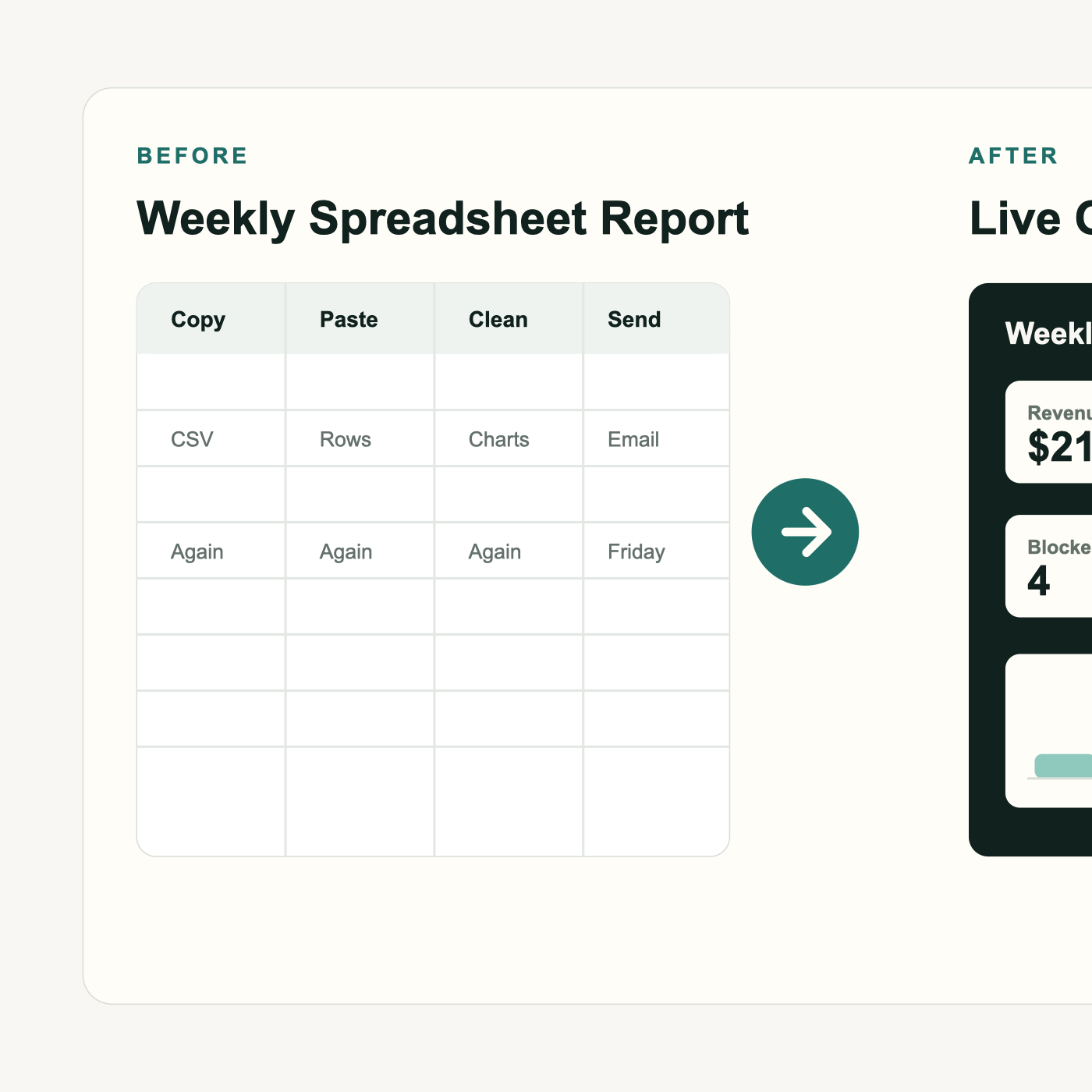
Stop rebuilding the same report every Friday
Many businesses already have the numbers they need in Google Sheets. The problem is that someone still has to open the file, find the newest totals, write an email, and send it to the team.
That work feels small until it happens every week. If one report takes 90 minutes, it consumes nearly 78 hours every year. That is almost two full workweeks spent assembling information instead of using it.
What you'll build
One spreadsheet that sends its own weekly summary
- A Monday email with the numbers that matter
- Revenue, customers, open work, and overdue items
- A direct link to the full spreadsheet
- An automatic schedule that runs without opening the file
- A reusable starting point for more advanced reporting
The finished flow
Your team keeps using the spreadsheet. The owner gets a cleaner summary without asking anyone to build it again.
What the email can look like
What you need
- A Google account
- One Google Sheet with the report numbers
- The email address that should receive the summary
- About 30 minutes for the first setup
You do not need a server or a separate email tool. Google Apps Script is a small automation tool built into Google Sheets.
Set up the weekly report
1. Create a Weekly Report sheet
5 minutesAdd a new tab and name it Weekly Report. Put the metric names in column A and their newest values in column B.
| Metric | Value |
|---|---|
| Revenue | $18,420 |
| New Customers | 14 |
| Open Tasks | 27 |
| Overdue Tasks | 6 |
| At-Risk Accounts | 3 |
These values can be typed in, calculated with formulas, or pulled from other tabs. Start with five numbers. More is not always better.
2. Open Apps Script
2 minutesIn Google Sheets, choose Extensions, then Apps Script. A new editor opens in another tab. Delete the sample function so the file is empty.
3. Add the email script
10 minutesPaste the code below into the editor. Replace owner@yourbusiness.com with the address that should receive the report.
function sendWeeklyBusinessReport() {
  const spreadsheet = SpreadsheetApp.getActiveSpreadsheet();
  const sheet = spreadsheet.getSheetByName("Weekly Report");

  if (!sheet) {
    throw new Error('Create a sheet named "Weekly Report" first.');
  }

  const recipient = "owner@yourbusiness.com";
  const rows = sheet.getRange("A2:B6").getDisplayValues();
  const reportDate = Utilities.formatDate(
    new Date(),
    Session.getScriptTimeZone(),
    "MMM d, yyyy",
  );

  const textRows = rows
    .filter(function (row) { return row[0]; })
    .map(function (row) { return row[0] + ": " + row[1]; })
    .join("\n");

  const htmlRows = rows
    .filter(function (row) { return row[0]; })
    .map(function (row) {
      return "<li><strong>" + row[0] + ":</strong> " + row[1] + "</li>";
    })
    .join("");

  MailApp.sendEmail({
    to: recipient,
    subject: "Weekly Business Report - " + reportDate,
    body: "Here is your weekly business report:\n\n" + textRows +
      "\n\nOpen the full sheet: " + spreadsheet.getUrl(),
    htmlBody: "<h2>Weekly Business Report</h2><ul>" + htmlRows +
      "</ul><p><a href='" + spreadsheet.getUrl() +
      "'>Open the full report</a></p>",
  });
}4. Send a test email
5 minutesClick Run and choose the sendWeeklyBusinessReport function. Google will ask you to approve permission because the script reads the sheet and sends an email from your account.
Check the email before adding the schedule. Fix the address, labels, or cell range now while the setup is easy to test.
5. Schedule it for Monday morning
5 minutesIn Apps Script, open Triggers and choose Add Trigger. Select the report function, choose a time-driven trigger, select Week timer, Monday, and the morning hour you prefer.
Google runs recurring triggers sometime within the selected hour, so an 8 a.m. setting may arrive a few minutes after 8. Google's official guide explains how to manage scheduled Apps Script triggers.
6. Keep the source numbers current
OngoingThe email can only report what is in the sheet. Use formulas or connected data where possible. If part of the sheet still needs a manual update, give one person a clear deadline before the email runs.
The measurable payoff
Get almost two workweeks back each year
Removing 85 minutes of weekly report work saves about 74 hours a year. More importantly, the report arrives consistently even when the person who normally builds it is busy.
Use this for internal reporting
This setup works well for sending a report to an owner and a small leadership team. It is not meant for emailing thousands of customers. Apps Script has daily recipient limits that vary by account type.
For current limits, review Google's Apps Script quota documentation. Use a newsletter service when the audience becomes a mailing list.
What to automate next
Once the weekly email works, the next step is connecting the source systems so nobody has to update the report tab manually.
- Import Stripe revenue and subscription numbers
- Pull open invoices from your accounting software
- Count registrations or new leads automatically
- Highlight overdue tasks and at-risk customers
- Send different summaries to owners and department leads
- Store each weekly snapshot for long-term trends
Troubleshooting
The email did not arrive
Check the recipient address, spam folder, and the Executions page in Apps Script. The execution log will show whether the script ran or failed.
The email has the wrong numbers
Confirm the sheet is named Weekly Report and that the report values are in cells A2 through B6. Change the range in the script if your report uses different cells.
The report arrived at the wrong time
Check the Apps Script project time zone and the trigger settings. Google schedules recurring triggers within the selected hour, not at an exact minute.
The report was sent twice
Open Triggers and remove the duplicate schedule. You only need one weekly trigger for the sendWeeklyBusinessReport function.
You need to email a large list
Use this setup for a small internal reporting group. Apps Script has daily recipient limits and is not a replacement for a newsletter platform.
Want the report built for you?
Turn your weekly reporting work into one automatic summary
Ravert Systems can map the report you build today, connect the software holding each number, create the dashboard, and send the right summary to your team every week.
- Map the report your team builds today
- Identify numbers that can update automatically
- Find the manual steps consuming the most time
- Receive a practical plan for improving the workflow