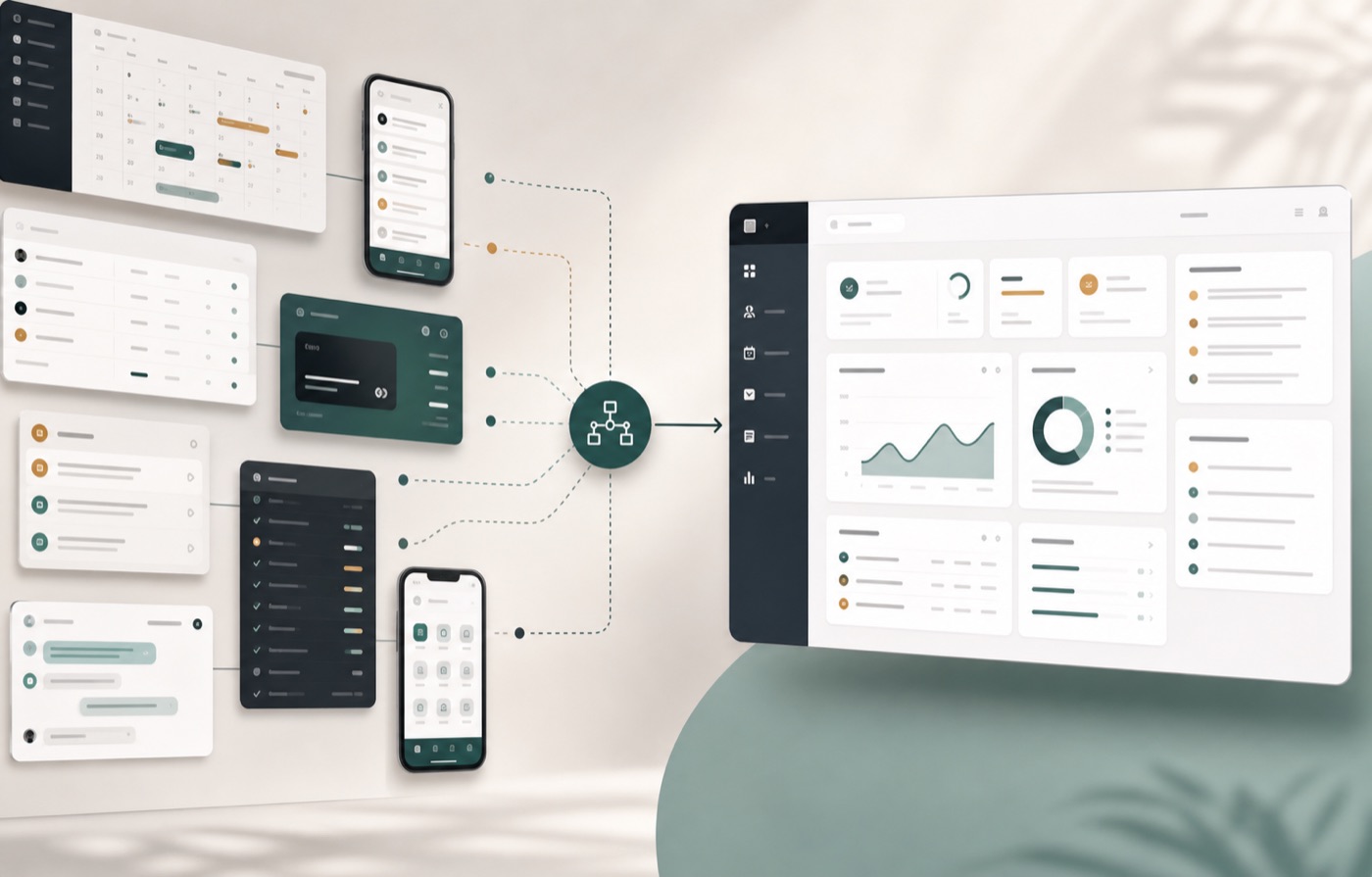
You do not have to throw your spreadsheet away
Many businesses already run on spreadsheets. That is okay. Spreadsheets are easy to edit. Your team already knows how to use them. They are often the fastest way to keep work moving.
The goal is not to rebuild your whole business on day one. The goal is smaller and more useful: turn one Google Sheet into a simple live dashboard.
The owner gets charts, KPIs, search, and filters. The team keeps using the sheet. That is the whole point.
Before you start
What You'll Build
By the end of this guide you'll have:
- A live dashboard connected to Google Sheets
- Searchable and sortable business data
- Charts powered by your spreadsheet
- Automatic updates whenever your spreadsheet changes
- A production-ready project deployed on Render
- A reusable foundation for future integrations like Stripe, Gmail, or Google Calendar
What You'll Learn
By completing this guide you'll also learn:
- How to connect safely to Google Sheets
- How to securely store credentials
- How to read spreadsheet data
- How to populate a React dashboard
- How to deploy a production application on Render
Final Result
In this first version, you will connect one sheet called Customers. Staff can update rows in Google Sheets. The dashboard reads those rows and shows live numbers.
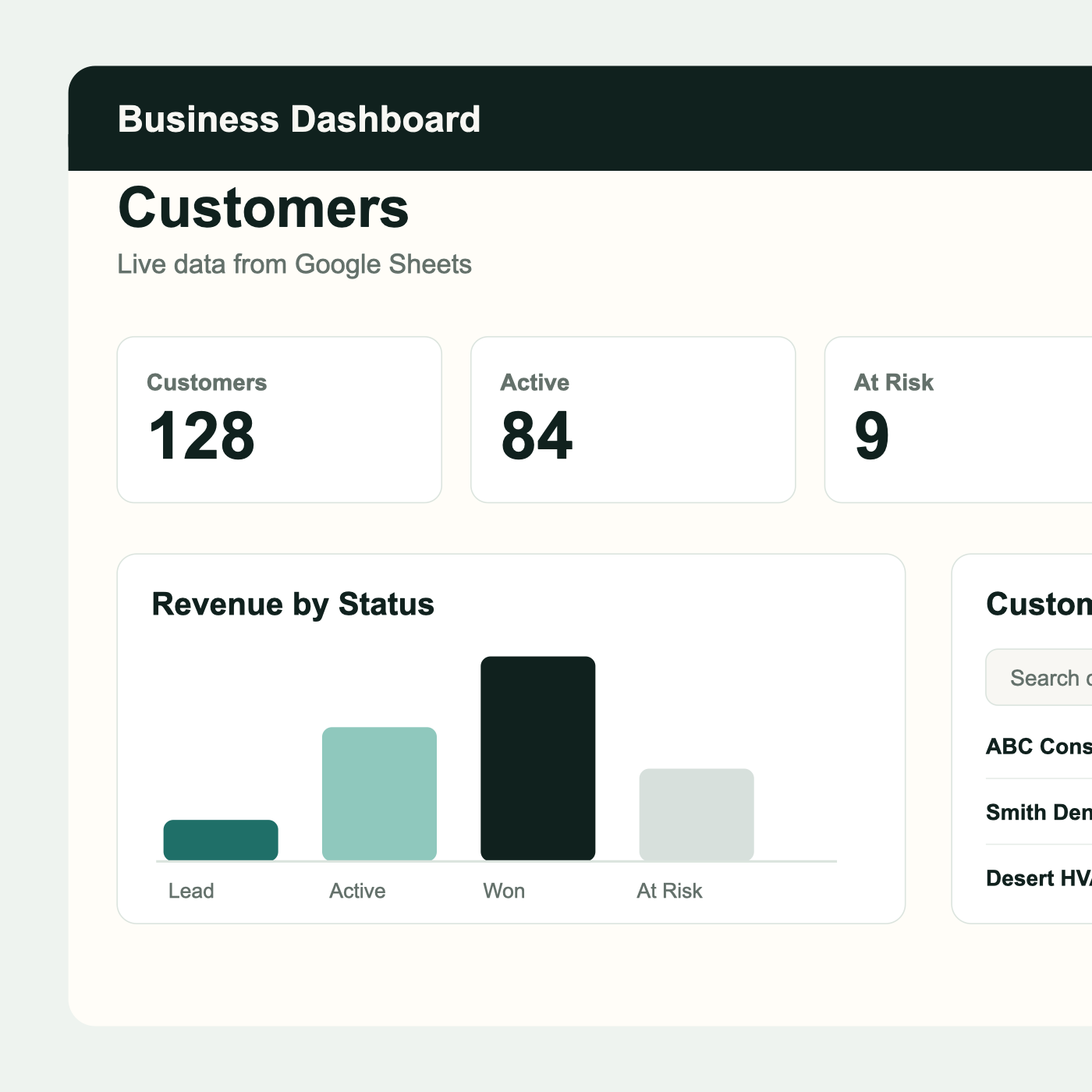
Free starter project
Start with the Business Operations Starter
The Business Operations Starter gives you the dashboard foundation so you are not starting from a blank screen.
This isn't just a demo project; it's the same starter architecture I use when building custom internal tools for businesses. It's production-ready, open source, and designed to grow as your business grows.
What you need
- A Google account
- One Google Sheet
- The Business Operations Starter dashboard
- A Google Service Account
- A deployed app on Render
1. Clone the Starter Project
Time: 2 minutesStart by downloading or cloning the Business Operations Starter. This gives you the dashboard, table, chart, and deployment structure before you connect real data.
git clone https://github.com/mravert93/business-operations-starter.git2. Create the Google Sheet
Time: 3 minutesCreate a Google Sheet named Customers. Add these columns in the first row.
| Company | Primary Contact | Status | Last Activity | Annual Value | |
|---|---|---|---|---|---|
| ABC Construction | Maria Lopez | maria@abcconstruction.com | Active | 2026-07-09 | 72000 |
| Smith Dental | Evan Smith | evan@smithdental.com | Lead | 2026-07-05 | 38000 |
| Desert HVAC | Kim Patel | kim@deserthvac.com | At Risk | 2026-06-27 | 61000 |
3. Create a Google Service Account
Time: 5 minutesThis step gives your dashboard a safe way to read the sheet. Take it one click at a time.
- Go to Google Cloud Console.
- Create a project.
- Enable Google Sheets API.
- Create a Service Account.
- Create a JSON key.
- Save the file safely.
4. Share the sheet
Time: 30 secondsOpen the JSON file and find client_email. It will look like an email address.
Open your Google Sheet. Click Share. Add that email address as Viewer.
This gives your dashboard permission to read the sheet, but not edit it.
5. Add environment variables
Time: 3 minutesEnvironment variables are private settings for your app. Your developer can add these locally and in Render.
GOOGLE_SERVICE_ACCOUNT_EMAIL=
GOOGLE_PRIVATE_KEY=
GOOGLE_SHEET_ID=
The first two values come from the JSON key file you downloaded in Step 3.
| Environment variable | Where to find it |
|---|---|
GOOGLE_SERVICE_ACCOUNT_EMAIL | Copy the value next to client_email. |
GOOGLE_PRIVATE_KEY | Copy the full value next to private_key, including the beginning and ending lines. |
GOOGLE_SHEET_ID | Copy it from the Google Sheet URL. |
The sheet ID is in the Google Sheet URL.
https://docs.google.com/spreadsheets/d/SHEET_ID_IS_HERE/edit6. Install the Google Sheets package
Time: 1 minuteThis package lets the dashboard read rows from Google Sheets.
npm install googleapis7. Create a Google Sheets helper
Time: 5 minutesAsk your developer to create this file: src/utils/googleSheetsApi.ts
The helper connects with the service account, reads rows from the sheet, and turns those rows into objects the dashboard can use.
import { google } from "googleapis";

const auth = new google.auth.JWT({
  email: process.env.GOOGLE_SERVICE_ACCOUNT_EMAIL,
  key: process.env.GOOGLE_PRIVATE_KEY?.replace(/\\n/g, "\n"),
  scopes: ["https://www.googleapis.com/auth/spreadsheets.readonly"],
});

const sheets = google.sheets({ version: "v4", auth });

export async function getCustomersFromGoogleSheet() {
  const response = await sheets.spreadsheets.values.get({
    spreadsheetId: process.env.GOOGLE_SHEET_ID,
    range: "Customers!A1:F",
  });

  const [headers = [], ...rows] = response.data.values ?? [];

  return rows.map((row) =>
    Object.fromEntries(
      headers.map((header, index) => [header, row[index] ?? ""]),
    ),
  );
}
8. Replace the mock data
Time: 3 minutesIn the starter, the pretend data lives here: src/utils/mockApi.ts
Right now, this file gives the dashboard sample data. Change one function so it gets customers from Google Sheets instead.
getCustomers: () => wait(customers)getCustomers: () => getCustomersFromGoogleSheet()9. Deploy to Render
Time: 5 minutesWhen it works locally, deploy it.
- Push the code to GitHub.
- Open Render.
- Add the same environment variables.
- Deploy the app.
10. Test it
Time: 1 minute- Open the dashboard.
- Change a row in Google Sheets.
- Refresh the dashboard.
- Look for the new data.
That is the moment most owners smile. The team keeps using the spreadsheet, and the dashboard updates from the same source.
What to connect next
Once Customers works, do not rush to rebuild the whole app. Pick the next sheet that saves the most time.
- Invoices
- Tasks
- Projects
- Registrations
- Documents
Start with one sheet.
Do not rebuild the whole company at once.
Connect customers first. Then invoices. Then tasks. Then reports.
That is how a spreadsheet slowly becomes real business software.
Troubleshooting
Permission denied
Verify the service account email has Viewer access to the spreadsheet.
Spreadsheet not found
Confirm the Spreadsheet ID matches the URL.
Dashboard is empty
Ensure the sheet contains data. Verify the correct worksheet name is configured.
Environment variables are not working
Double check Render environment variables. Redeploy after making changes.
Charts are not updating
Refresh the dashboard. Verify the sheet is updating correctly.
Continue Building
Once one sheet is connected, you can keep adding small, useful integrations one at a time.
Connect Stripe to Your Dashboard
Connect Gmail to Your Dashboard
Connect Google Calendar
Combine Multiple Data Sources
Build Your Own CRM
Create Executive KPI Dashboards
Done-for-you setup
Want help finding the manual work slowing your business down?
If you already have a Google Sheet your team depends on, I can help turn it into a simple dashboard and identify the next workflow worth improving.
We can start with one sheet, one workflow, and one dashboard page. You keep the process your team knows. I handle the setup, deployment, and the parts that should stay private.
Explore Done-for-You Dashboard Services