The short answer
How to connect Google My Business to Google Sheets
To connect Google My Business to Google Sheets, open your Google Business Profile performance report and copy the newest metrics into a dated spreadsheet row. For live updates, use a secure Business Profile integration that imports the data automatically. The free template below supports the simple weekly method.
From Google to one live dashboard
The manual version is ready in one afternoon. The automated version uses a secure Google Business Profile integration to save fresh data every day.
Your Google numbers should not disappear when you close the tab
Most business owners check their Google Business Profile once in a while. They look at reviews, calls, website visits, and direction requests. Then they close the page and get back to work.
A month later, the old numbers are hard to remember.
- Are we getting more calls than last month?
- Which month had the most website visits?
- Are our reviews improving?
- Is the business getting busier?
- Are our marketing efforts helping?
You do not need expensive software to answer those questions. You can start today with one simple Google Sheet.
Why this matters
Build a history of your business
Instead of opening Google each week and trying to remember the last number, save it. After a few months, you can see busy periods, slow periods, stronger reviews, and growing traffic.
Google shows what is happening now. Your spreadsheet shows what has changed over time.
What you'll build
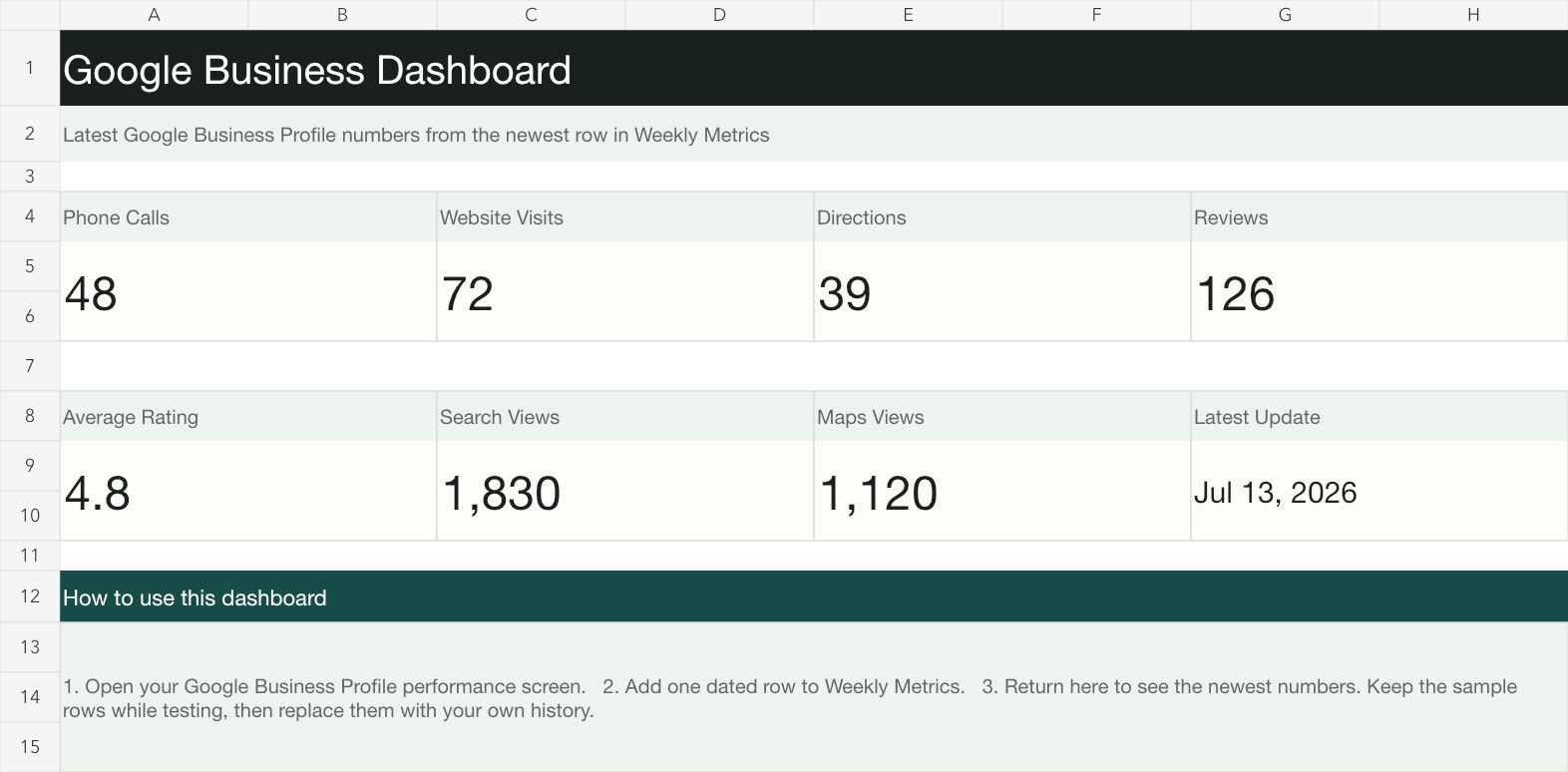
The finished dashboard is intentionally simple. It shows the newest numbers from your weekly history. No charts. No code. No complicated setup.
Free template
Start with the ready-made dashboard
The workbook includes a Dashboard tab and a Weekly Metrics tab. Upload it to Google Drive, open it with Google Sheets, and replace the sample numbers with your own.
The simple version
Export Google Business Profile data to Google Sheets manually
The first setup may take an hour or two while you find the right numbers and add any history you already have. After that, the weekly update takes about five minutes.
1. Download and open the template
5 minutesDownload the workbook above. Upload it to Google Drive. Choose Open with Google Sheets. You will see two tabs: Dashboard and Weekly Metrics.
2. Open your Business Profile performance
5 minutesSign in to the Google Account that manages your verified Business Profile. Open its performance information and choose a date range. Google's official guide explains where to find your Business Profile performance.
3. Copy the newest numbers
5 minutesUse the same date range every time. Copy calls, website clicks, directions, and available views from Performance. Copy the review count and average rating from the Business Profile itself.
- Phone calls
- Website clicks
- Direction requests
- Total reviews
- Average rating
- Search views
- Maps views
4. Add one row to Weekly Metrics
2 minutesAdd the date and numbers to the next empty row. Keep one row for each week or month. Do not replace the last row. Your old rows are what create the history.
5. Return to the dashboard
InstantThe cards read the newest dated row automatically. That's it. Your team can keep using Google Sheets, and you now have a simple dashboard.
Why save the numbers?
The dashboard is useful today. The history becomes more valuable each month. Soon you can answer questions from your own data:
- Are calls increasing?
- Are reviews improving?
- Is website traffic growing?
- Which months are strongest?
- Are there seasonal slow periods?
- Which locations perform best?
You can also add one row per location if you run more than one office. Start small. Add complexity only when it helps.
What happens as your business grows?
Eventually, many owners stop wanting to copy the numbers. They want the history saved every day without opening Google or the spreadsheet.
That is when automation starts to make sense.
The fully automated version
Automatically export Google Business Profile data
Every morning, the latest metrics are imported, the dashboard is updated, and the historical data is saved. No weekly copying is required.
What the advanced dashboard can include
- Calls, website clicks, and direction requests
- Search and Maps views
- Review count and average rating
- Monthly trends and review history
- Multiple locations
- Google Sheets and CSV exports
- Scheduled email reports
- Multiple users with secure access
How the advanced connection works
You do not need to learn the technical pieces. Ravert Systems handles the Google Cloud setup, access request, secure account connection, data sync, and dashboard build.
Verify your Google Business Profile
Google only provides performance data for verified profiles.
Request Google access
Google reviews Business Profile API access requests, so this step can take some time.
Connect the account securely
Ravert Systems handles the Google Cloud setup and account connection.
Start the daily sync
New performance and review data is saved automatically.
Use the dashboard
Your latest numbers and history stay ready whenever you need them.
Google says Business Profile API access requests are reviewed, so approval can take time. The application and setup are part of the project, not homework for the business owner. Read Google's Business Profile API FAQ.
When does automation make sense?
| Comparison | Manual dashboard | Automated dashboard |
|---|---|---|
| Update method | Copy one row each week | Automatic daily sync |
| Setup | Ready in one afternoon | Custom account connection |
| Cost | Free template | Custom project |
| History | Weekly or monthly entries | Daily records |
| Locations | Best for one location | Built for one or many |
| Reporting | Simple KPI cards | Trends, exports, and email reports |
The Ravert Systems approach
Connect the tools you already have
You do not need to replace the software you already use. The goal is to connect those tools, remove repetitive work, and give you one place to understand your business.
Start with the free spreadsheet. Automate it only when the manual step stops being useful.
Frequently asked questions
Google Business Profile and Google Sheets FAQ
Can Google My Business connect directly to Google Sheets?
Google Business Profile does not include a built-in live Google Sheets sync. You can copy performance numbers into a sheet for a simple weekly dashboard, or use a secure Business Profile integration to import new data automatically.
What Google Business Profile metrics can I track?
Depending on your business and profile, Google may show searches, views, calls, website clicks, direction requests, messages, and bookings. You can also record your review count and average rating from the profile.
Can I export Google Business Profile data to Excel?
Yes. You can record the performance data in Google Sheets and download the sheet as an Excel or CSV file. An automated dashboard can also provide scheduled Google Sheets or CSV exports.
Do I need a verified Google Business Profile?
Yes. Google only provides Business Profile performance information for verified profiles. You must also sign in with an account that manages the profile.
Can the Google Business dashboard update automatically?
Yes. An automatic connection can save fresh performance data on a schedule, maintain your history, update a dashboard, and combine results from multiple locations without weekly copying.
Want us to build it for you?
Get the fully automated dashboard
Ravert Systems can handle the Google access request, secure account connection, automatic daily sync, historical reporting, custom dashboard, and Google Sheets export.
- Automatic daily updates
- Historical reporting
- Multiple locations
- Future Stripe, QuickBooks, or Shopify connections